TL;DR: A mesh comes in as a ZIP bundle with an OBJ file and its textures, through the Drop Zone on Data models. SDX-Cloud shows it as Mesh, processes it, and displays it textured in the viewer. A mesh feeds the combined surface, and so comparisons and volumes, only when it is the primary file of its dataset.
Where meshes come from
- Meshes from Sodex photogrammetry processing appear automatically when processing finishes.
- External meshes come in as a mesh bundle through the Drop Zone, next to point clouds and orthophotos.
Only meshes from Sodex photogrammetry processing have been tested. Other photogrammetry tools are not listed as supported.
What a valid mesh bundle contains
The ZIP file itself can have any name. The mesh, together with offset.xyz, must use the coordinate system of the project.
| File | Required | Purpose |
|---|---|---|
OBJ file (.obj) |
Yes | The mesh itself. The OBJ file can have any name. |
Material file (.mtl) and texture images |
For a textured mesh | Colors the mesh in the viewer |
offset.xyz |
No | The coordinate origin of the mesh: one line with easting, northing, and height. SDX-Cloud adds it to the mesh coordinates. |
Import a mesh bundle
- Open your project and go to Data > Data models.
- Select Add.
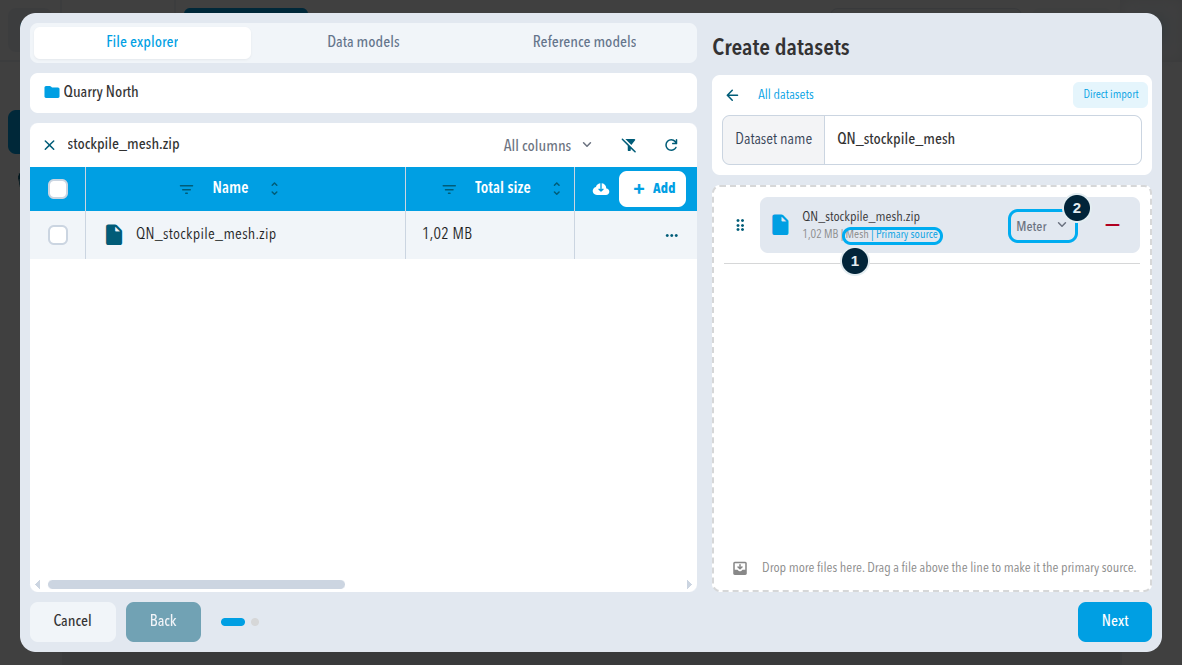
- Drag the ZIP file into the Drop Zone.
- Check that the file shows Mesh and Primary source.
- Set the unit of the mesh: Meter, Feet, or US survey feet.
- Select Next.
- Enter a Name and check the Capturing date.
- Select Import snapshot.
Result
The data model appears in the list with the status Processing and changes to Finished when the mesh is ready. A mesh bundle has no Processing Settings step and no cost estimate; those appear only for images.
What processing does
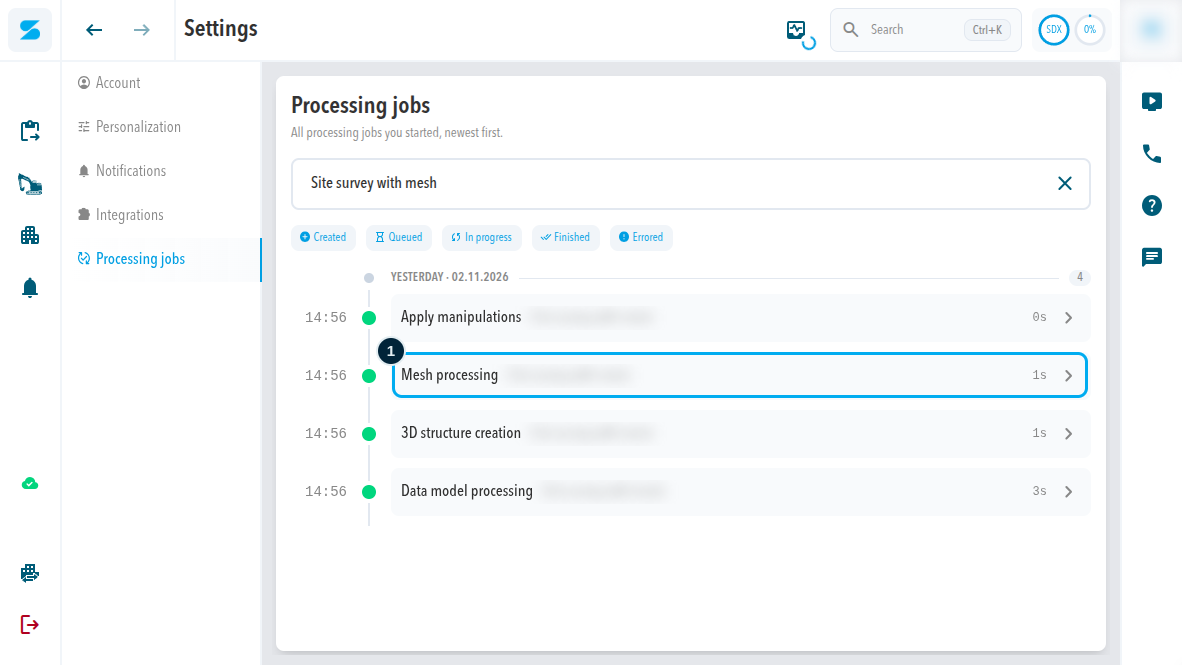
The import starts these processing jobs:
- Data model processing: builds the data model and its combined surface.
- Mesh processing: prepares the mesh for the viewer.
- Apply manipulations: applies any manipulations of the data model.
- 3D structure creation: only when the dataset also has a point cloud.
Meshes in the viewer
Open the data model in the 3D viewer, for example with the open button in its row. The mesh appears with its texture. You can measure on a mesh in the viewer.
Meshes and comparisons
Comparisons and volume calculations use the combined surface, not the mesh itself.
- A mesh that is the primary file of a dataset feeds the combined surface, and so it feeds comparisons.
- A mesh added as a secondary file, for example next to a point cloud, is only shown. The combined surface comes from the primary file.
To use a mesh for comparisons, import it as the primary file of its own dataset.
Sodex Mobile
Sodex Mobile does not show meshes yet.
Comments
0 comments
Please sign in to leave a comment.