TL;DR: On Data models, select Add, drop your files into a dataset, check Primary source and the unit, select Next, check the processing settings if you import images, enter a name and capturing date, and select Import snapshot.
Prerequisites
- A project whose coordinate system matches your files.
- Files in a supported format.
- Room left in your organization's data limit for imported models.
- For images: enough photogrammetry credits. The cost estimate shows them before you import.
Import a new data model
- Open your project and go to Data > Data models.
- Select Add. The Create datasets window opens.
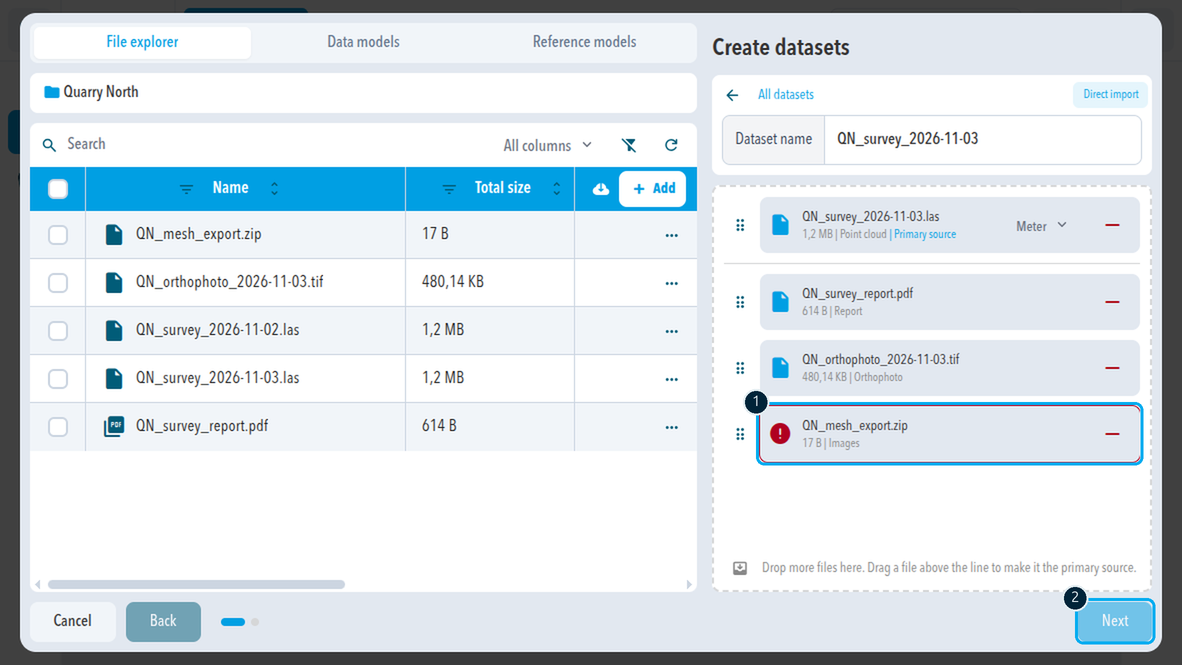
- Drag the main file of the dataset, for example a point cloud, a mesh, or the images of a flight, into the Drop Zone on the right. You can drag it from your computer or from File explorer on the left.
- Check Dataset name. SDX-Cloud fills it in from the file name; change it if you like.
- Drag the other files of this dataset into the Drop Zone, for example an orthophoto, or the ground control point and PPK files of a flight.
- Check each file: its type, the Primary source label on the main file, and for point clouds, meshes, and IFC models the unit (Meter, Feet, or US survey feet).
- To add another dataset, select All datasets at the top left, select +, and repeat steps 3 to 6.
- Select Next.
- If the import contains images, check Provider, Point Cloud Density, Orthophoto Resolution, and the Cost estimate in Processing Settings, then select Next.
- In Snapshot metadata, check Name and Capturing date. With images, Get creation date from images fills in the capturing date for you.
- Optionally add a Description and Tags.
- Select Import snapshot.
When you drop several files at once, SDX-Cloud picks the primary file at random. Always check which file shows Primary source before you select Next. Only a point cloud or a mesh can be the primary file. To change it, drag another file above the line.
Result
The window closes and the data model appears in the Data models list with its status. Processing runs in the background; for images, photogrammetry starts automatically. Follow it in the processing jobs or select the status of the data model.
If something is not right
| What you see | What to do |
|---|---|
| This dataset already contains a file of this type. | Put the second file into its own dataset: All datasets > +. |
| This file type isn't supported. | Convert the file to a supported format. |
| A file with a red frame and an error icon | SDX-Cloud cannot use the file. Remove it with the minus button and check the file. |
| Next stays unavailable | The dataset has no usable primary file. Remove the file with the error, or drop a supported file first. |
| A point cloud is not added to an image dataset | Image datasets take only images, ground control points, and PPK files. Put the point cloud into its own dataset. |
Cancel the import
To stop without importing, select Cancel. Files you dropped from your computer stay in the file explorer.
Comments
0 comments
Please sign in to leave a comment.