A layout defines the header or the footer of a document. You create it once under Document layouts, and everyone in your organization can pick it when creating a document.
Before you start
- You can open Organization Settings in SDX-Cloud.
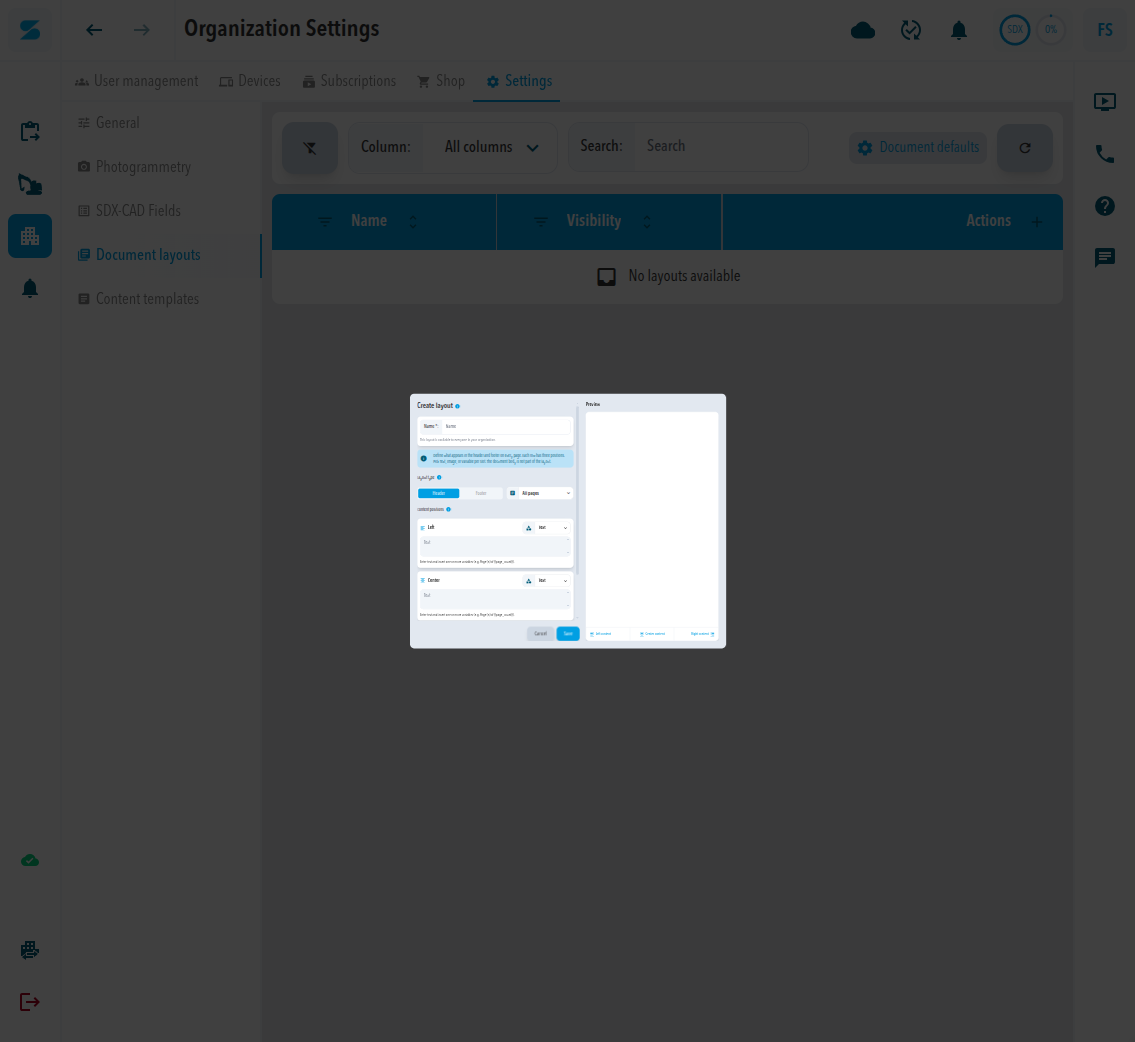
Create the layout
- Open Organization Settings, then Settings, then Document layouts. The project Settings menu lists Document layouts as well.
- Click the add icon.
- Enter a Name.
- Under Layout type, choose Header or Footer.
- Choose whether the layout applies to All pages or First page only.
- For each of the three positions (Left, Center, Right), choose Text or Image from the list. Text accepts variables such as
{{page_count}}. For an image, click the add icon and upload a PNG, JPEG, GIF, WebP, or SVG file. - Click Save.
Add a logo
A layout position can show an image, such as your company logo. You upload the logo in the layout itself. Use a PNG, JPEG, GIF, WebP, or SVG file.
- Open Settings, then Document layouts, and click the add icon. To change a layout, open its menu in the Actions column and click Edit.
- Enter a Name and choose Header or Footer under Layout type.
- For the position that should hold the logo (Left, Center, or Right), open the type list and choose Image.
- Click the add icon and select your logo file. The logo appears as a thumbnail with a delete icon, and in the Preview.
- Click Save.
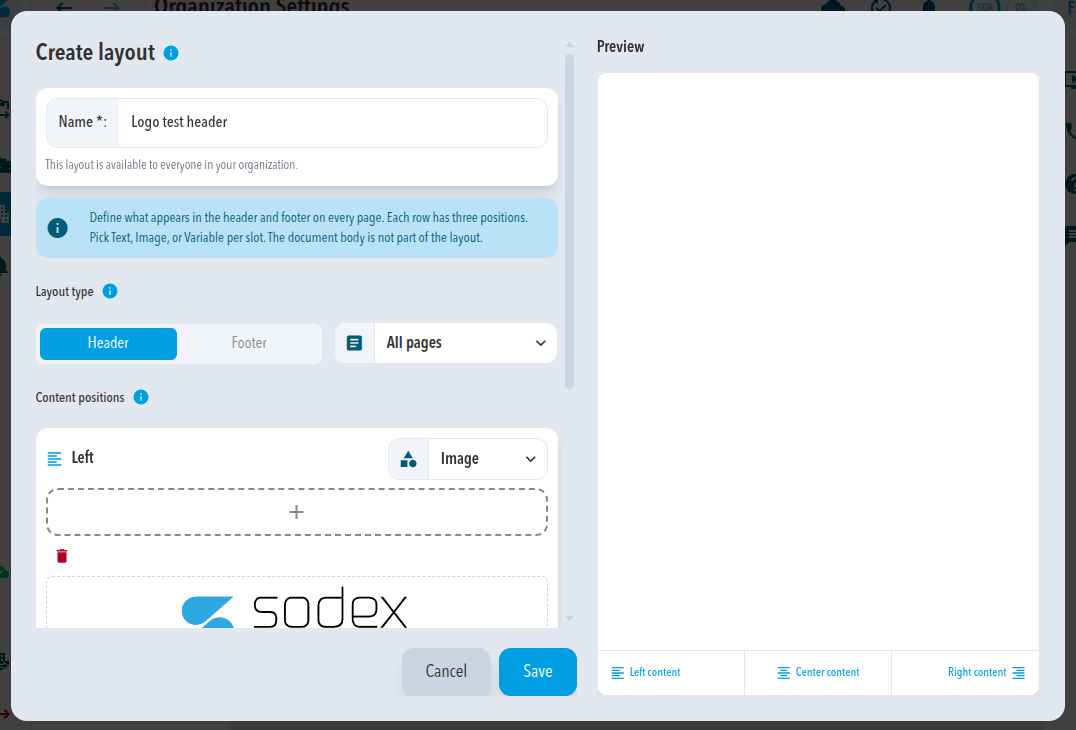
Use a PNG or JPEG for your logo. In our test an SVG file that has no width and height was shown with no size in the document header, while the same logo as a PNG was shown correctly.
Use the layout
The layout appears under Select layout when you create a document, and on the No layout button in the editor. Its Visibility in the Document layouts table is Organization.
Expected result
The layout appears in the Document layouts table with its Name and Visibility. The document body is not part of a layout.
Document defaults on the same page sets the Default document font: Helvetica, Arial, Times New Roman, Georgia, or Verdana.
Comments
0 comments
Please sign in to leave a comment.