SDX-Docs is the Documents tab of a project. It holds your site documents in folders, lets you start them from a layout and a content template, and lets you export a PDF or share a document.
Where documents live
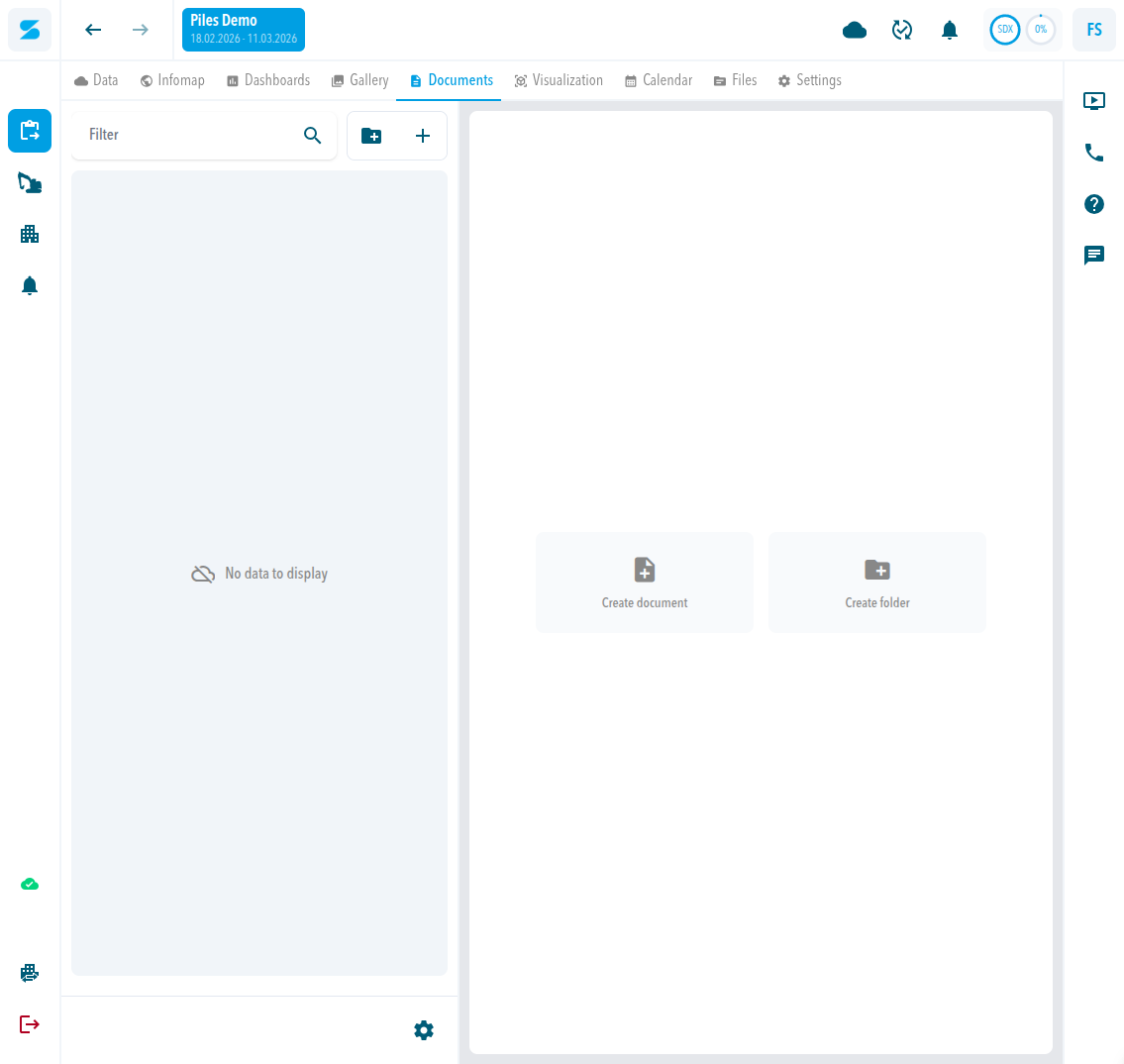
Open a project and click Documents. The left pane lists the folders with a Filter box, a create-folder icon, and an add icon. A folder menu offers Rename, Move to, and Delete. An empty folder shows two cards: Create document and Create folder.
Create a document
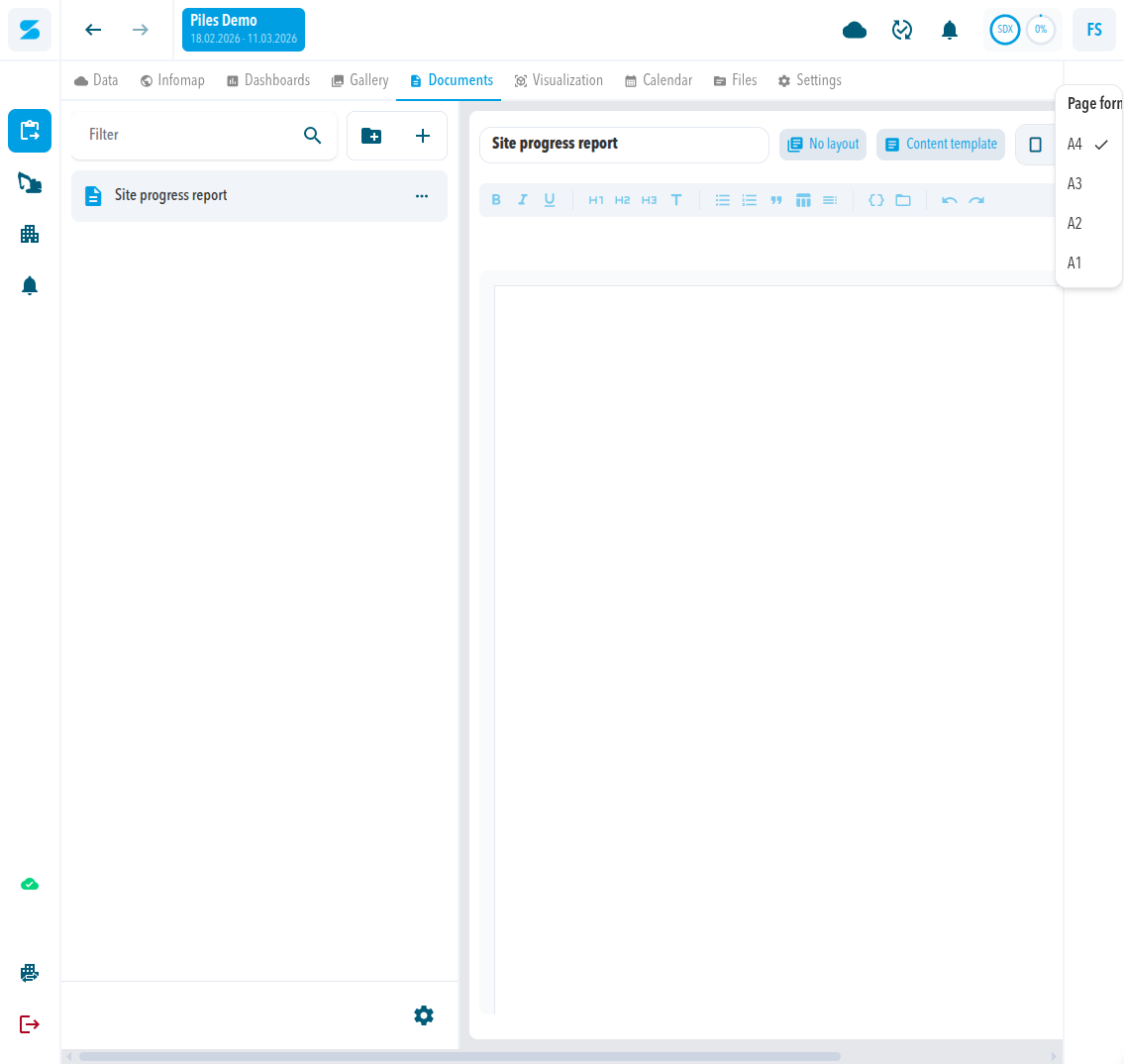
A document has a name, an optional layout, and an optional content template. The page size is set in the editor under Page format (A4, A3, A2, or A1). There is no landscape or portrait setting.
Steps: Create a document.
Layouts and content templates
Layouts and content templates are reusable pieces that you pick when you create a document:
- A layout defines the header and footer. Steps: Create a layout for header and footer.
- A content template defines reusable body content: text, variables, and tables. Steps: Create a content template.
The default font is set once under Document defaults: Set the default document font. Placeholders such as {{page_count}} are listed in Variables for documents, layouts, and templates. To change the layout or template of a document that already exists, see Change the layout or content template of a document.
The document editor
The editor has a name field, the buttons No layout and Content template, Page format, a text toolbar, and the actions Preview variables, Export PDF, Share, Copy link, and Settings.
Work with an existing document
The three-dot menu of a document offers Move to, Copy link to document, Duplicate, and Delete document. Delete document asks Move this document to trash? and deletes after Delete.
Share a document
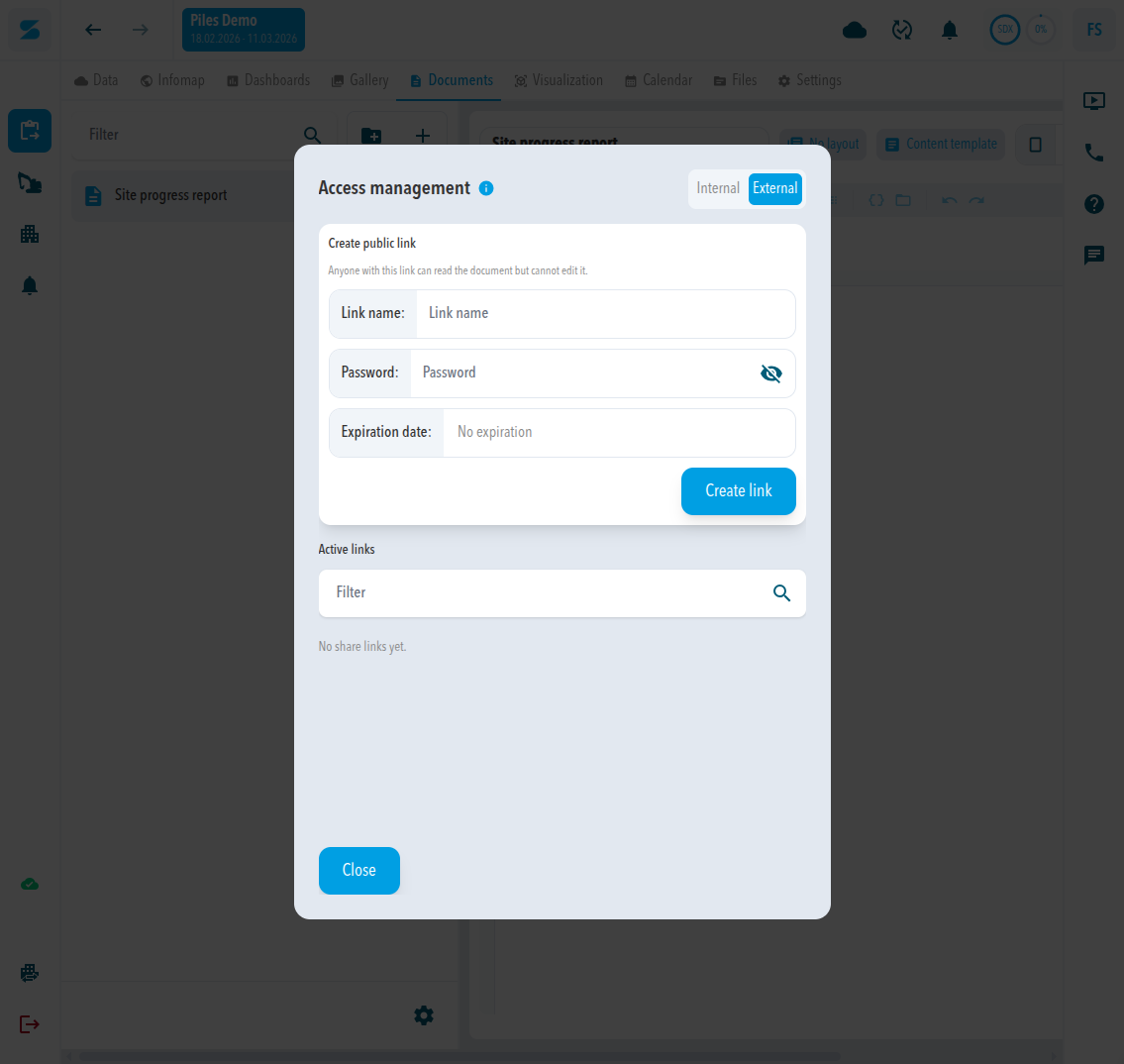
Share on a document opens Access management.
- Internal sets the Visibility to Project members or Private and lists the members with their roles.
- External creates a public read-only link with a Link name, an optional Password, and an Expiration date. Active links lists the links you created.
Comments
0 comments
Please sign in to leave a comment.