The document editor has the buttons No layout and Content template. Use them to pick a layout for header and footer or a content template for a document that already exists.
Before you start
- A layout or a content template exists. If a list shows No layouts available or No content templates available, create one first. See Create a layout for header and footer and Create a content template.
- You can open the document in the Documents tab of the project.
Pick a layout
- Open the project, click Documents, and open the document.
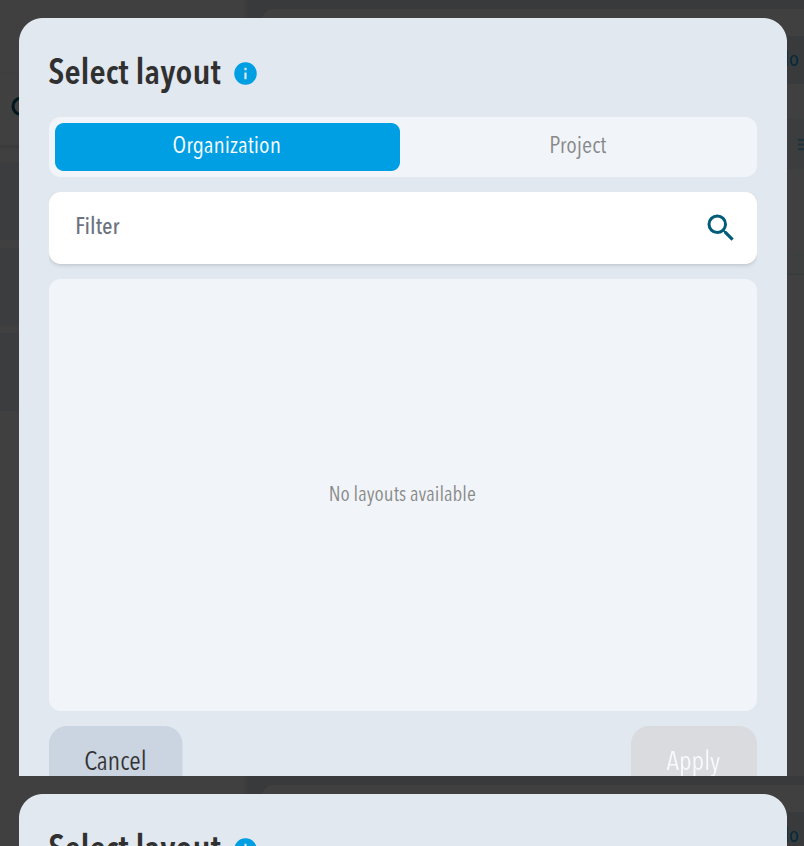
- Click No layout. The Select layout dialog opens.
- Choose Organization or Project to switch between the two lists. Use the search field to find a name.
- Select the layout and click Apply.
Pick a content template
- In the document editor, click Content template. The Apply content template dialog opens.
- Choose Organization or Project, or search for a name.
- Select the template and click Apply.
Expected result
The layout or content template you picked is applied to the document.
Comments
0 comments
Please sign in to leave a comment.