You create a document in the Documents tab of a project. You give it a name and can start it from a layout for header and footer and from a content template for the body. The page size is set afterwards in the editor.
Before you start
- You are signed in to SDX-Cloud and can open the project.
- Optional: a layout and a content template exist. See Create a layout and Create a content template.
Create the document
- Open the project and click Documents.
- Click the folder that should hold the document, or create one with the create-folder icon.
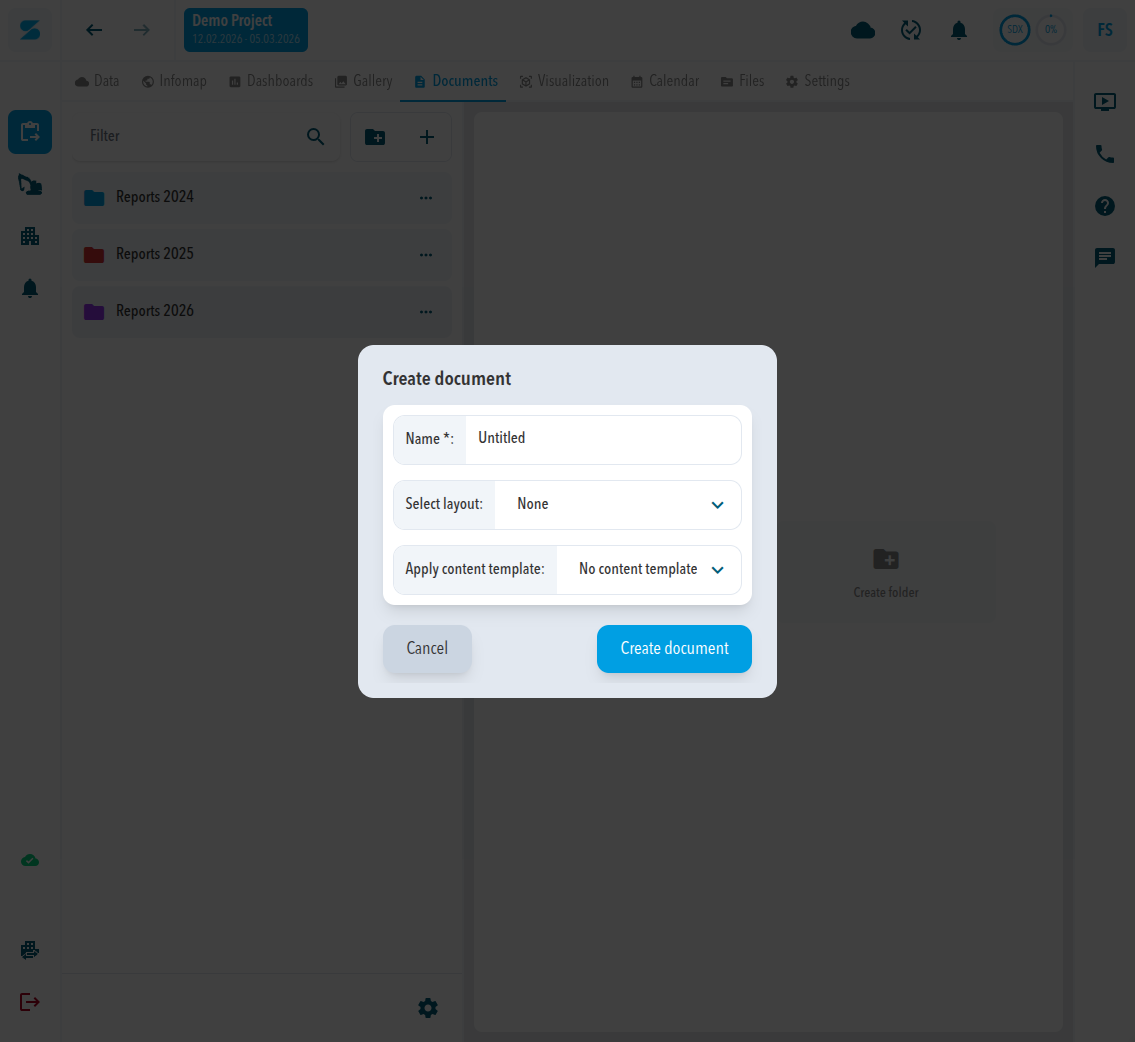
- Click Create document.
- Enter a Name. The default is Untitled.
- Under Select layout, pick a layout or keep None.
- Under Apply content template, pick a template or keep No content template.
- Click Create document.
Expected result
The document opens in the editor and appears in the folder list on the left.
Set the page format
In the editor toolbar, Page format shows A4. Click it to switch to A3, A2, or A1. Click Export PDF to create the file.
SDX-Docs has no portrait or landscape setting. The Create document dialog asks only for a name, a layout, and a content template, and neither layouts nor content templates carry a page size or an orientation.
Comments
0 comments
Please sign in to leave a comment.