TL;DR: The activity center combines notifications, processing jobs, and file transfers. Open it with the activity center button next to Search at the top. It has three tabs: Notifications, Processing jobs, and File transfers.
What it is
The activity center replaces the notification bell. It brings together three things in one place:
- Notifications
- Processing jobs
- File transfers
Open it
Select the activity center button at the top, to the left of Search. It is available everywhere in SDX-Cloud. The button shows a counter for unread items.
The activity center is global. It is not limited to the project you have open.
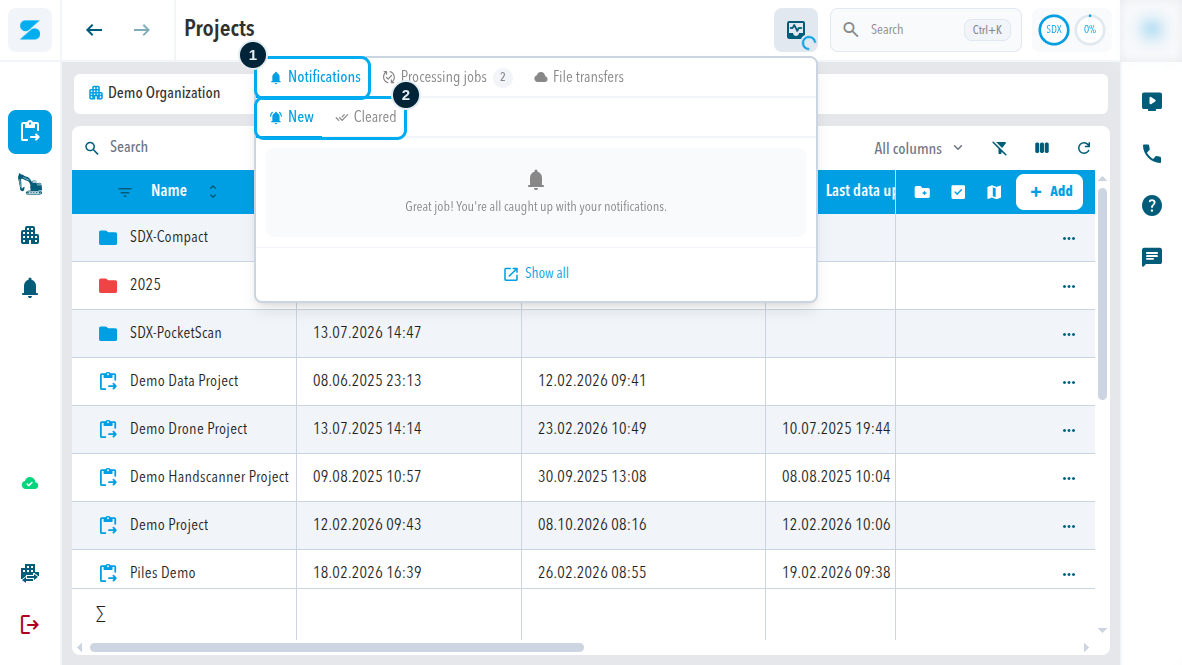
Notifications
The Notifications tab has two lists:
- New: notifications you have not cleared yet.
- Cleared: notifications you have cleared.
When there is nothing to show, the list says "Great job! You're all caught up with your notifications."
Show all opens the full Notifications page of your organization. It has the same New and Cleared lists, a search field, and filters for Processing, Systems, and Subscriptions.
No new notification types were added. The existing ones remain.
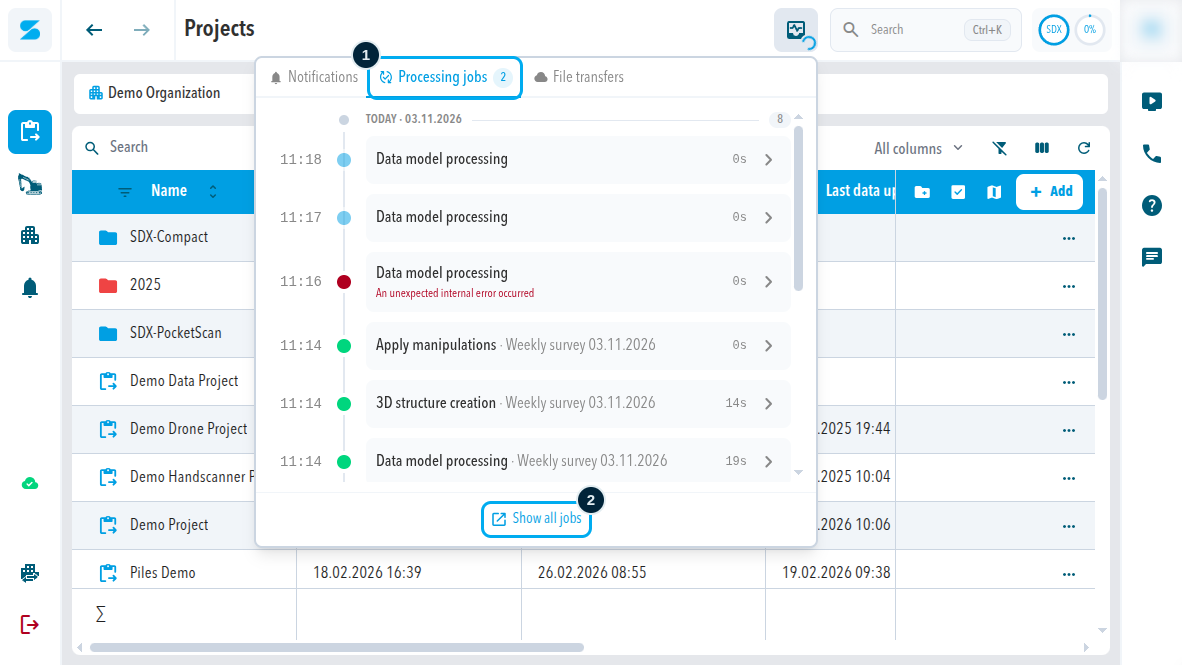
Processing jobs
The Processing jobs tab shows processing jobs grouped by day, newest first, with the same layout as the processing jobs lists. Select a job to open its details.
Show all jobs opens Settings > Processing jobs in your user settings, with all filters.
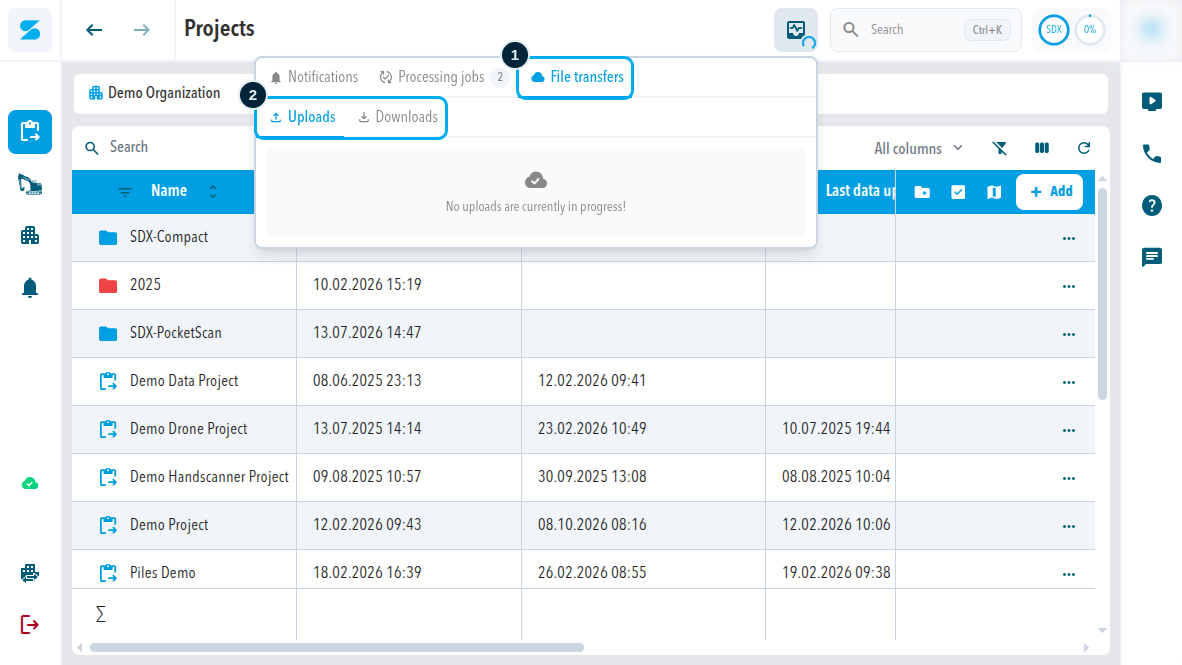
File transfers
The File transfers tab has two lists:
- Uploads: files you upload, for example into the Drop Zone or the file explorer. Each upload shows the file name, the project folder, its size, and whether it finished. A counter shows how many uploads are done, for example 16 / 16.
- Downloads: exports out of SDX-Cloud. You can download an export again. Exports stay available for a limited time.
Clear empties the list. When there is nothing to show, the list says, for example, "No uploads are currently in progress!"
Transfers with Trimble Connect or Infrakit do not appear here.
Comments
0 comments
Please sign in to leave a comment.