TL;DR: Link your Trimble Connect account in your user settings, then a project admin links Trimble Connect projects in the project settings. After that you can copy files in both directions and sync automatically.
Requirements
- A Trimble Connect license.
- The Trimble data center region does not matter.
Link your Trimble Connect account
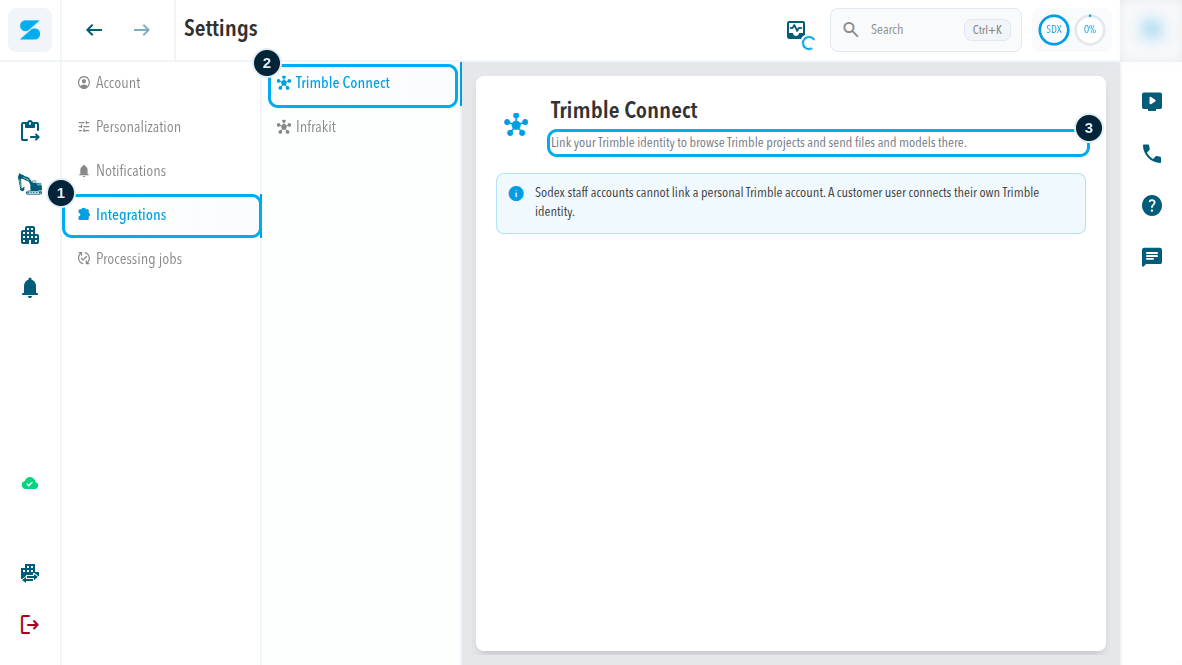
Any user can link a Trimble Connect account in the SDX-Cloud user settings, while working in their own organization. The page explains: "Link your Trimble identity to browse Trimble projects and send files and models there."
- One SDX-Cloud account links to one Trimble Connect account.
- Linking uses Trimble Identity.
- Sodex staff accounts cannot link a personal Trimble account. Each customer user connects their own Trimble identity.
Steps
- Select your initials at the top right, then Settings.
- Select Integrations, then Trimble Connect.
- Link your Trimble identity and sign in to Trimble Connect.
Link a Trimble Connect project
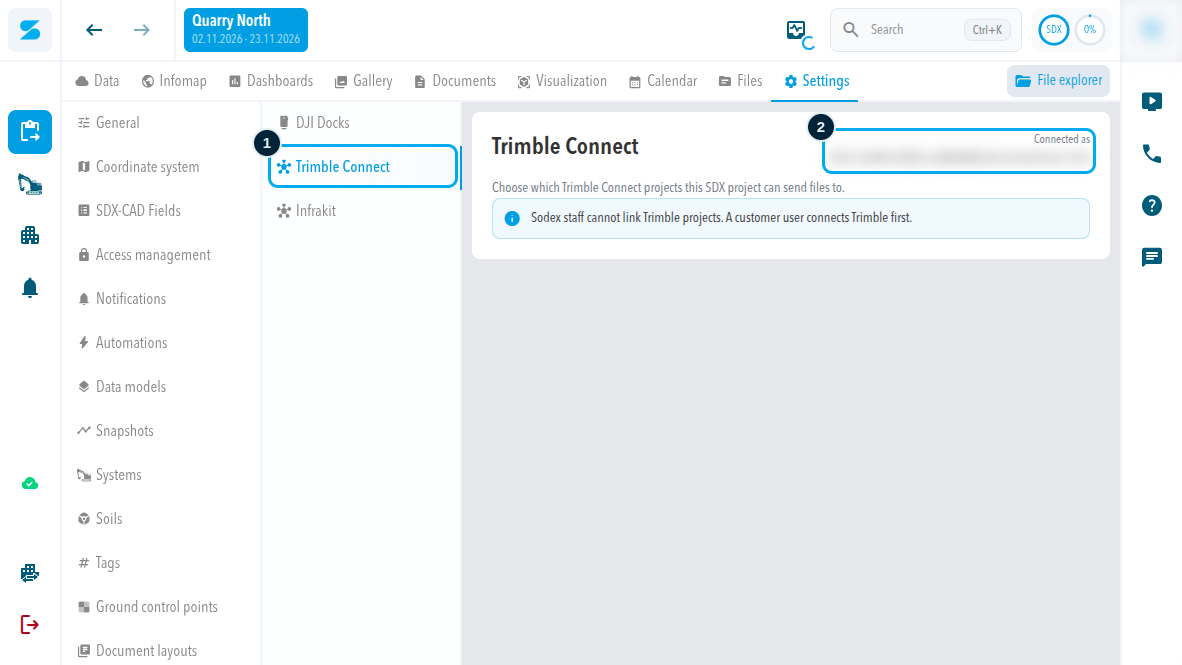
Only project admins can link Trimble Connect projects, in the project settings and in their own organization. The project links work only after your own Trimble Connect account is linked in your user settings.
- An SDX-Cloud project can be linked to several Trimble Connect projects.
- A Trimble Connect project can be linked to several SDX-Cloud projects.
- All members of the SDX-Cloud project can see the linked projects.
- Transfers use the connection of the person who first linked the project.
Distributors cannot link their account or create project links in an organization that is not their own. They can use project connections that already exist there.
Steps
- Open the project and select Settings > Integrations.
- Select the Trimble Connect tab. It sits next to DJI Docks and Infrakit.
- Choose which Trimble Connect projects this SDX-Cloud project can send files to. The page shows the Connected account that is used.
Copy files between Trimble Connect and SDX-Cloud
If your account is not linked yet, the window says "Connect Trimble in user settings to open the side-by-side explorer." Link your account first.
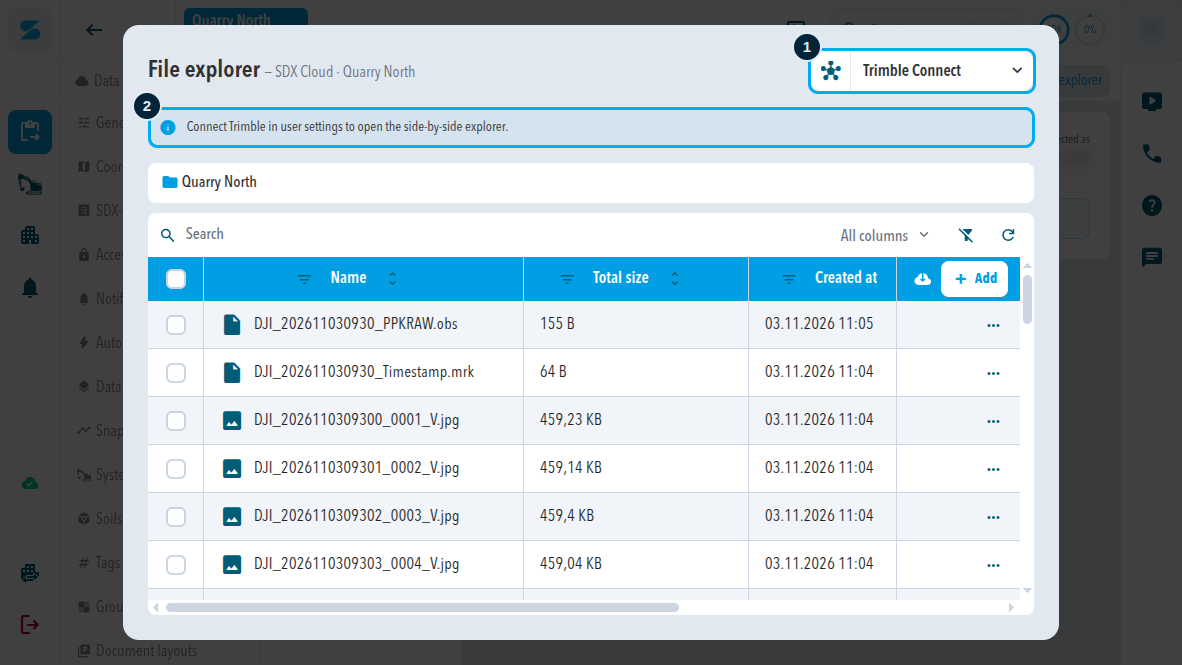
- Open the File explorer of the project.
- In the selector at the top right of the window, choose Trimble Connect. The Trimble Connect file explorer opens next to the SDX-Cloud files.
- Drag files from one side to the other.
What to know about copying
Files are copied, in either direction. The source files stay where they are. SDX-Cloud selects the target folder in Trimble Connect automatically. You cannot choose it.
Transfers with an integration do not appear in the File transfers tab of the activity center.
Sync automatically
Automations can sync to Trimble Connect, for example every data model or the last snapshot of the day, with your export settings. The target folder is selected automatically here too.
Remove or break a link
- A project admin can remove a project link. Automations that use the link are switched off.
- If the original connection is disconnected, or the person who made it leaves the organization, the link breaks and its automations stop. Someone else has to link the project again.
Comments
0 comments
Please sign in to leave a comment.