Import SDX-CAD fields from a JSON file in Settings > SDX-CAD Fields. The file is a list of fields, and each field needs type, name, and mandatory. Export your own fields first to get a template that is valid.
Before you start
- You can open Settings for your organization in SDX-Cloud.
- You have a
.jsonfile with the fields, or you export one as described below. - You know the field types you need: Text, Number, Dropdown, or Image.
What the JSON file contains
The file is a JSON array, even when it holds one field. Each entry in the array is one SDX-CAD field.
| Key | Used for | Required | Value |
|---|---|---|---|
type | All fields | Yes | string for Text, number for Number, select for Dropdown, image for Image. Use lowercase. |
name | All fields | Yes | The field name. |
mandatory | All fields | Yes | true or false, without quotation marks. |
max_length | string | No | The maximum number of characters. |
default_value | string, number | No | The default value of the field. |
min, max | number | No | The lowest and highest value. min must not be higher than max. |
options | select | Yes | A list of options. Each option has a label, and can have a color as a hex value such as #22C55E and an id. |
Example file
This file adds one field of each type:
[
  { "type": "string", "name": "Material", "mandatory": true, "max_length": 50, "default_value": "Steel" },
  { "type": "number", "name": "Quantity", "mandatory": false, "min": 0, "max": 100, "default_value": 1 },
  {
    "type": "select",
    "name": "Condition",
    "mandatory": false,
    "options": [
      { "label": "Good", "color": "#22C55E" },
      { "label": "Damaged", "color": "#0E7490" }
    ]
  },
  { "type": "image", "name": "Photo", "mandatory": false }
]
Get a template by exporting fields
Expected result: You have a .json file with the fields you ticked. Open it in a text editor, change it, and import it again.
- Open Settings > SDX-CAD Fields for your organization.
- Select the export button, next to Add.
- In Export measurement fields as JSON, tick the fields to export.
- Select Export.
id, created_at, and updated_at to every dropdown option. When you write a file yourself, a dropdown option needs only a label.Import fields from a JSON file
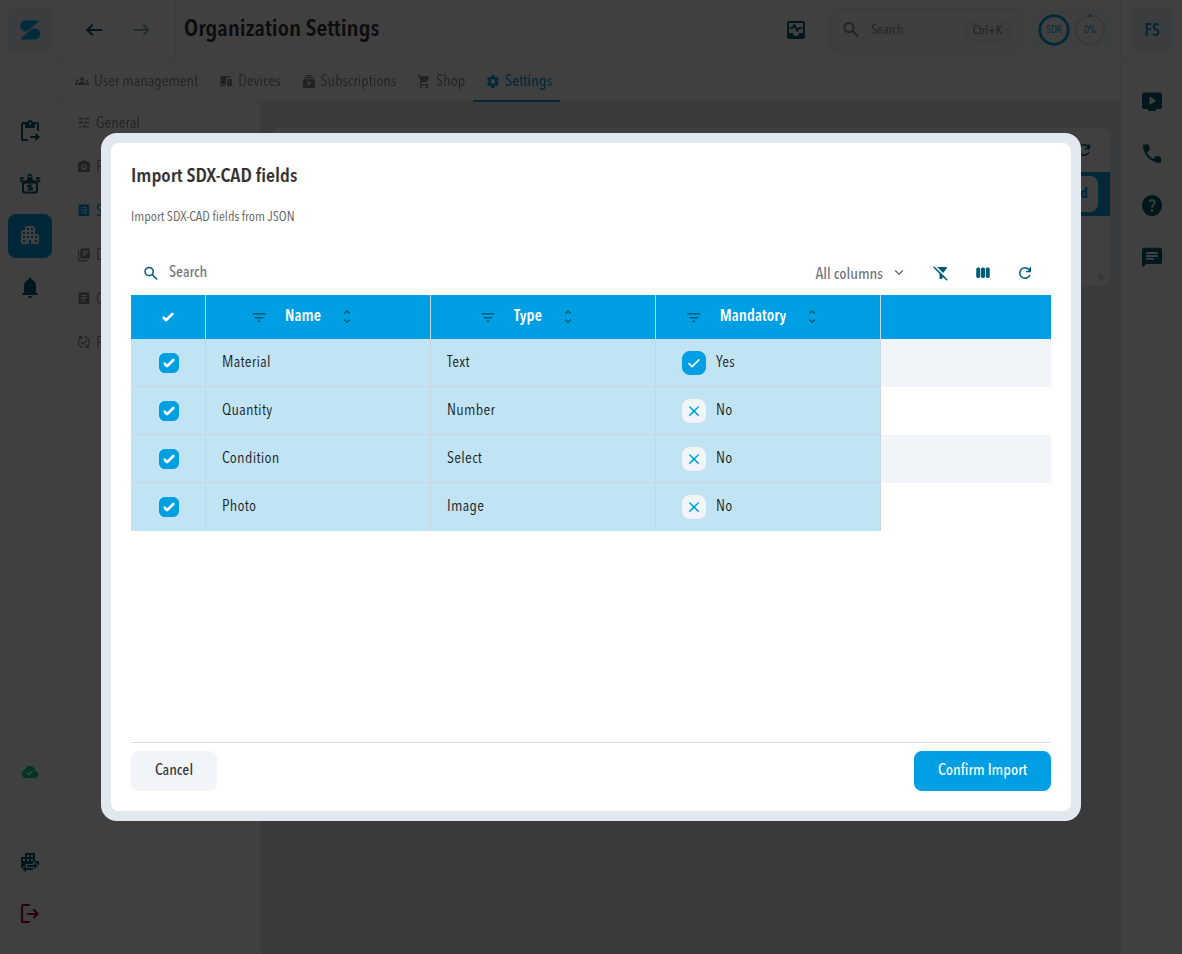
Expected result: The window Import SDX-CAD fields lists the new fields. After you confirm, the message SDX-CAD fields imported successfully appears and the fields are in the table. A dropdown field is listed with the type Select.
- Open Settings > SDX-CAD Fields for your organization.
- Select Import fields from JSON.
- Choose your
.jsonfile. - In Import SDX-CAD fields, check Name, Type, and Mandatory of each field.
- Tick the fields you want to add.
- Select Confirm Import.
Import in a project
In a project, open Settings > SDX-CAD Fields and select Import fields from JSON. The Choose file window lists the JSON files of the project. Select your file there. Use Add to upload it first when it is not in the list. The file follows the same rules as above.
Fields that already exist
A field whose name already exists is not imported again, and the existing field stays as it is. The window Import SDX-CAD fields shows how many fields were left out under Number of hidden SDX-CAD fields. To change an existing field, edit it in the table.
Fix a rejected file
Expected result: SDX-Cloud checks the file before it shows the fields. When the file is rejected, no window opens and nothing is imported. A message names the problem. At its end, path shows where the problem is: the first number is the position of the field in the list, starting at 0, followed by the key.
| Message | Cause | What to do |
|---|---|---|
is not valid JSON | The file is not written in JSON. | Fix the syntax: quotation marks around keys and text, commas between entries. |
expected array, received object | The file holds one field outside a list. | Put the field in square brackets [ ]. |
Invalid discriminator value | type is missing or is not select, string, number, or image. | Set type to one of these four values. |
expected string, received undefined with name | The field has no name. | Add name. |
expected boolean with mandatory | mandatory is missing, or written as text such as "yes". | Set mandatory to true or false, without quotation marks. |
expected array, received undefined with options | A select field has no options. | Add options with at least one label. |
min value must be less than or equal to max value | A number field has min higher than max. | Swap or correct the two values. |
Comments
0 comments
Please sign in to leave a comment.