A content template holds reusable body content for documents: text, variables, and tables. You create it once under Content templates, either for your whole organization or for one project, and people apply it when they create a document.
If you create the same type of document again and again, a content template saves you from rebuilding it each time. You define the structure once, with the text, tables, and variables that every document of that type needs, and each new document starts from that ready-made structure instead of a blank page.
Before you start
- To create a template for the whole organization, you can open Organization Settings in SDX-Cloud.
- To create a template for one project, you can open Settings in that project.
Create a template for the whole organization
- Open Organization Settings, then Settings, then Content templates.
- Click the add icon.
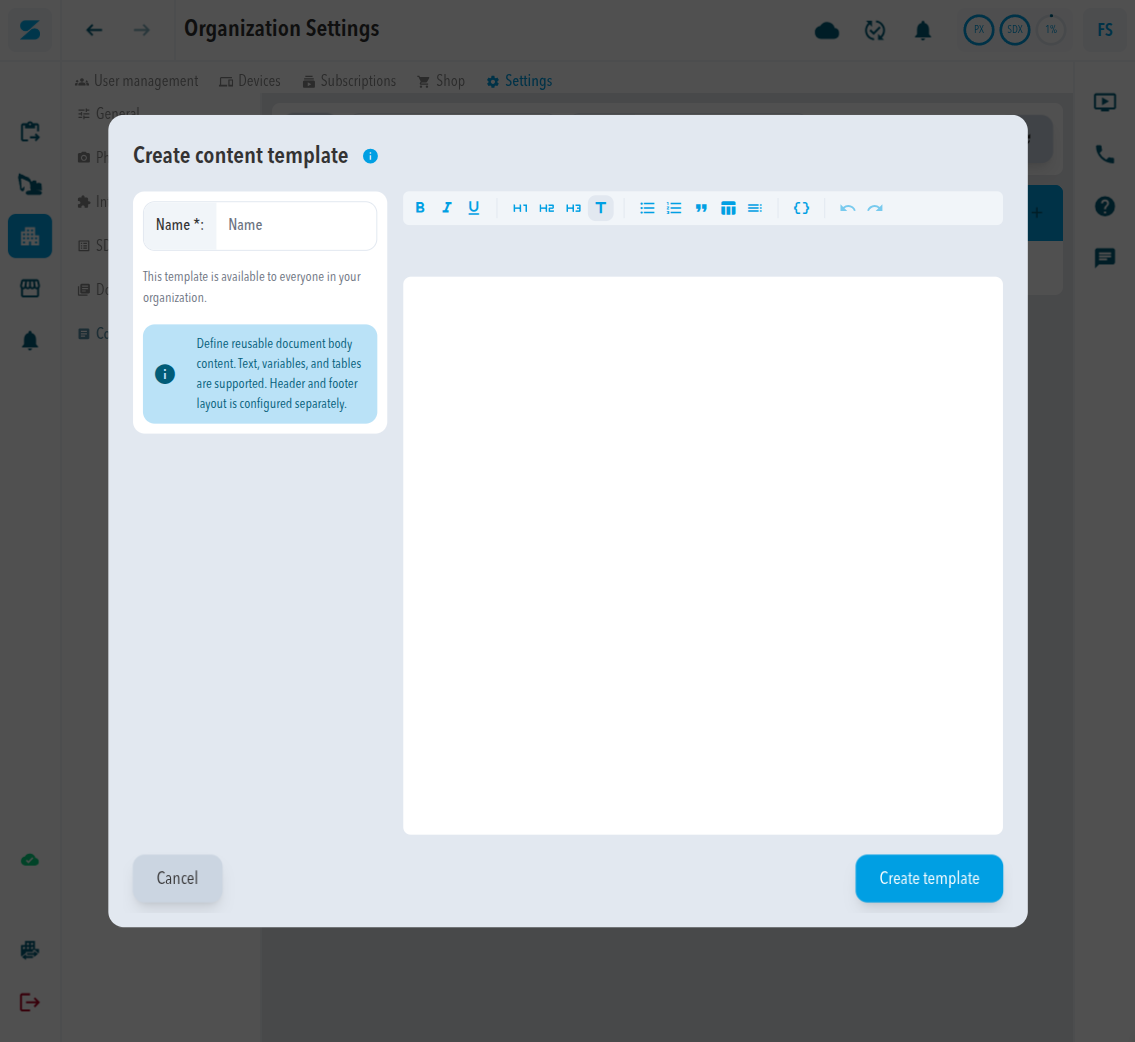
- Enter a Name.
- Write the body in the editor. The toolbar offers bold, italic, underline, heading, bulleted list, numbered list, quote, table, table of contents, and variable.
- Click Create template.
Create a template for one project
- Open the project, then Settings, then Content templates.
- Click the add icon.
- Enter a Name.
- Open the Visibility list and choose Project or Private. Project is the default.
- Write the body in the editor.
- Click Create template.
Expected result
The template appears in the Content templates table.
- An organization template shows Organization under Visibility. Pick it under Apply content template when you create a document in any project.
- A project template shows the Visibility you chose. Pick it under Apply content template when you create a document in that project only. Other projects do not list it.
The Content templates page of a project lists that project's templates, and the organization page lists the organization templates.
The dialog states that header and footer layout is configured separately. Use a layout for those.
Comments
0 comments
Please sign in to leave a comment.