Use Organization > Settings > Devices to assign one active drone to each DJI dock in SDX-Cloud and control whether dock uploads are processed automatically. Processing uses the flatrate or credits of the hardware that uploads the dataset, so dock uploads follow the dock's billing setup.
Summary
This article explains how DJI docks and drones work together in SDX-Cloud. It covers where to manage both device types, how to assign a drone to a dock, how dock uploads are processed, how automatic pins behave, and how flatrates and credits are applied per flight dataset.
Start with Device Management Overview and Adding & Managing Devices in SDX-Cloud.
Prerequisites
- A drone is added in Organization > Settings > Devices > Drones with the correct name and serial number.
- A DJI dock is added in Organization > Settings > Devices > DJI Docks.
- Your organization has a valid photogrammetry flatrate assigned to the relevant hardware or enough processing credits available.
Serial numbers and assigned flatrates are hardware-bound and cannot be changed or removed later. Double-check them before you save the device.
Step-by-step instructions
Where to manage DJI docks and drones
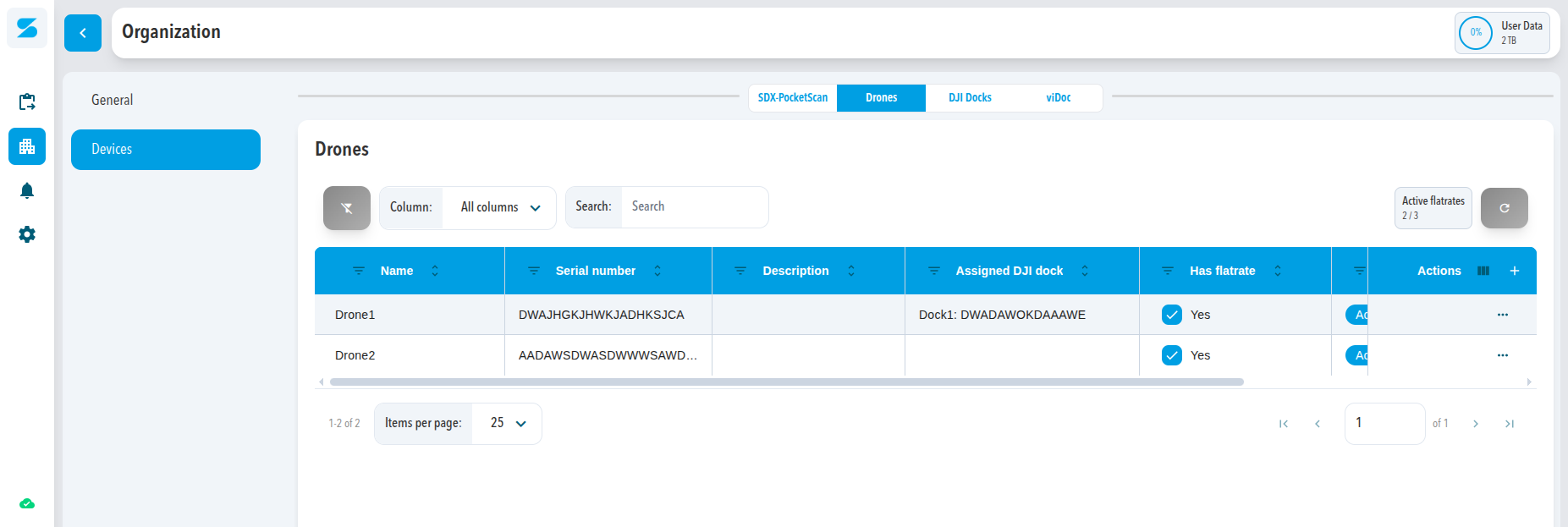
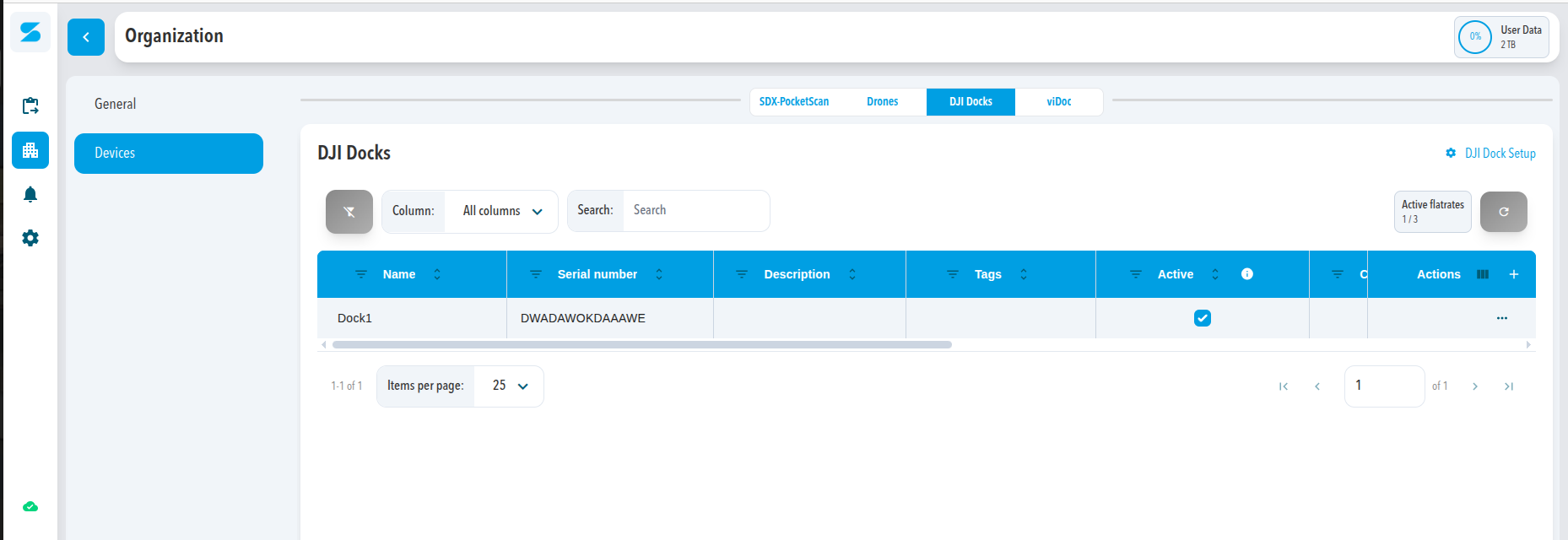
Manage both device types in Organization > Settings > Devices.
- Open the Drones tab to manage drones.
- Open the DJI Docks tab to manage docks and their assigned drone.
Assign a drone when you create a dock
Each dock can have exactly one active drone assigned at a time.
- Click + to add a new dock.
- Enter the dock Name, Serial number, and an optional Description.
- Select the drone in the Active drone dropdown.
- Enable Active if uploads from this dock should be processed automatically.
- Enable Create pins if SDX-Cloud should create Infomap pins for dock uploads.
- Enable Has flatrate if the dock has a Gigapixel flatrate assigned.
- Click Continue.
Expected result: The dock is saved with one active drone assignment and the selected processing options.
Change the active drone of an existing dock
- Open the dock's Actions (⋯) menu.
- Click Edit.
- Select a different device in Active drone.
- Adjust the other dock settings if needed.
- Click Save.
Expected result: New flights from the dock use the newly assigned drone.
How dock uploads and processing behave
When you use a DJI dock with SDX-Cloud, the dock uploads the flight data and the uploaded dataset is associated with both the dock and the active drone assigned to it.
How the Active setting works
- Active = On: Data models uploaded through this dock are processed automatically.
- Active = Off: Data models still upload, but they are not processed automatically. You can process them manually later.
This setting lets you pause automatic processing without deleting or disconnecting the dock.
How the Create pins setting works
- Create pins = On: SDX-Cloud creates Infomap pins for datasets uploaded through the dock.
- Create pins = Off: Uploads still work, but pins are not created automatically.
Turn off Create pins if you want to keep the map clean during testing or when you only want to upload selected datasets.
Flatrates, credits, and Gigapixel usage per flight dataset
DJI docks and drones support two processing models:
- Photogrammetry flatrate: unlimited usage up to the limit of the assigned flatrate, for example 20 Gigapixel.
- Credit-based photogrammetry: processing is charged per dataset.
Flatrate options by hardware type
- DJI Dock: can use an assigned photogrammetry flatrate or credits.
- Drone: can use an assigned photogrammetry flatrate or credits.
Billing behavior for each dock and drone combination
The uploader determines which billing setup is used for each dataset.
Drone and dock both have no flatrate
- Flight via dock: The dataset uses photogrammetry credits.
- Standalone flight from the drone: The dataset also uses photogrammetry credits.
All processing is credit-based, regardless of whether the dock is used.
Drone has a flatrate and the dock has no flatrate
- Flight via dock: The dataset uses photogrammetry credits because the dock is the uploader.
- Standalone flight from the drone: The dataset uses the drone's photogrammetry flatrate.
Dock flights consume credits, while standalone drone flights use the drone flatrate.
Drone has no flatrate and the dock has a flatrate
- Flight via dock: The dataset uses the dock's photogrammetry flatrate.
- Standalone flight from the drone: The dataset uses photogrammetry credits.
Flights uploaded through the dock are covered by the dock flatrate, while standalone drone flights use credits.
Drone and dock both have a flatrate
- Flight via dock: The dataset uses the dock's photogrammetry flatrate.
- Standalone flight from the drone: The dataset uses the drone's photogrammetry flatrate.
Flatrates do not stack and do not increase the Gigapixel limit per dataset. Credits are not used as long as a flatrate is active on the hardware that uploads the dataset.
Removing or deleting drones and docks
Remove or change a drone assignment on a dock
- Go to Devices > DJI Docks.
- Edit the dock from the Actions (⋯) menu.
- Change Active drone to a different drone or clear the assignment.
- Save the changes.
Changing the active drone does not affect existing datasets. It only changes which drone is used for future flights.
Delete a drone that was used with a dock
- The drone can be deleted if it has no flatrate assigned.
- Being referenced by a dock does not block the deletion.
Delete a dock
- The dock can be deleted if it has no flatrate assigned.
The dock cannot be deleted. Set Active = Off if it should no longer be used.
Recommended setup example
Typical dock deployment
- Dock: Has a Gigapixel flatrate.
- Drone: Uses its own flatrate or credits for standalone uploads.
In this setup, flights triggered through the dock are uploaded and processed automatically as long as the dock is active.
Troubleshooting
The drone does not appear in the Active drone dropdown
- Verify that the drone exists in Devices > Drones.
- Check that the drone serial number is correct.
- Confirm that you have permission to manage both drones and docks.
Verification: The drone becomes selectable in Active drone.
Dock flights are not processed automatically
- Check that the dock is set to Active in Devices > DJI Docks.
- Confirm that the organization has a valid flatrate on the uploading hardware or enough processing credits.
Verification: New uploads from the dock enter processing automatically after they arrive in SDX-Cloud.
Infomap pins are not created for dock uploads
- Edit the dock.
- Enable Create pins.
- Refresh the map or review the project filter settings.
Verification: New dock uploads create pins in the Infomap.
You cannot delete a dock or drone
- Check whether Has flatrate or Has license is enabled.
- If a flatrate or license is assigned, leave the device in place and set it to Active = Off if it should no longer be used.
Verification: Devices without assigned flatrates can be deleted. Devices with assigned flatrates remain available but inactive.
Comments
0 comments
Please sign in to leave a comment.