You move a project into a folder from the Projects list with Move project. Folders belong to your organization, so a project cannot be moved to another organization this way, and single data models are not moved at all: they stay in their project.
Before you start
- You are signed in to SDX-Cloud and see the Projects list of your organization.
- You know the folder the project should go to, or the name of the folder you want to create.
Move the project
- Open the Projects list of your organization.
- In the row of the project, click the three-dot menu under Actions.
- Click Move project.
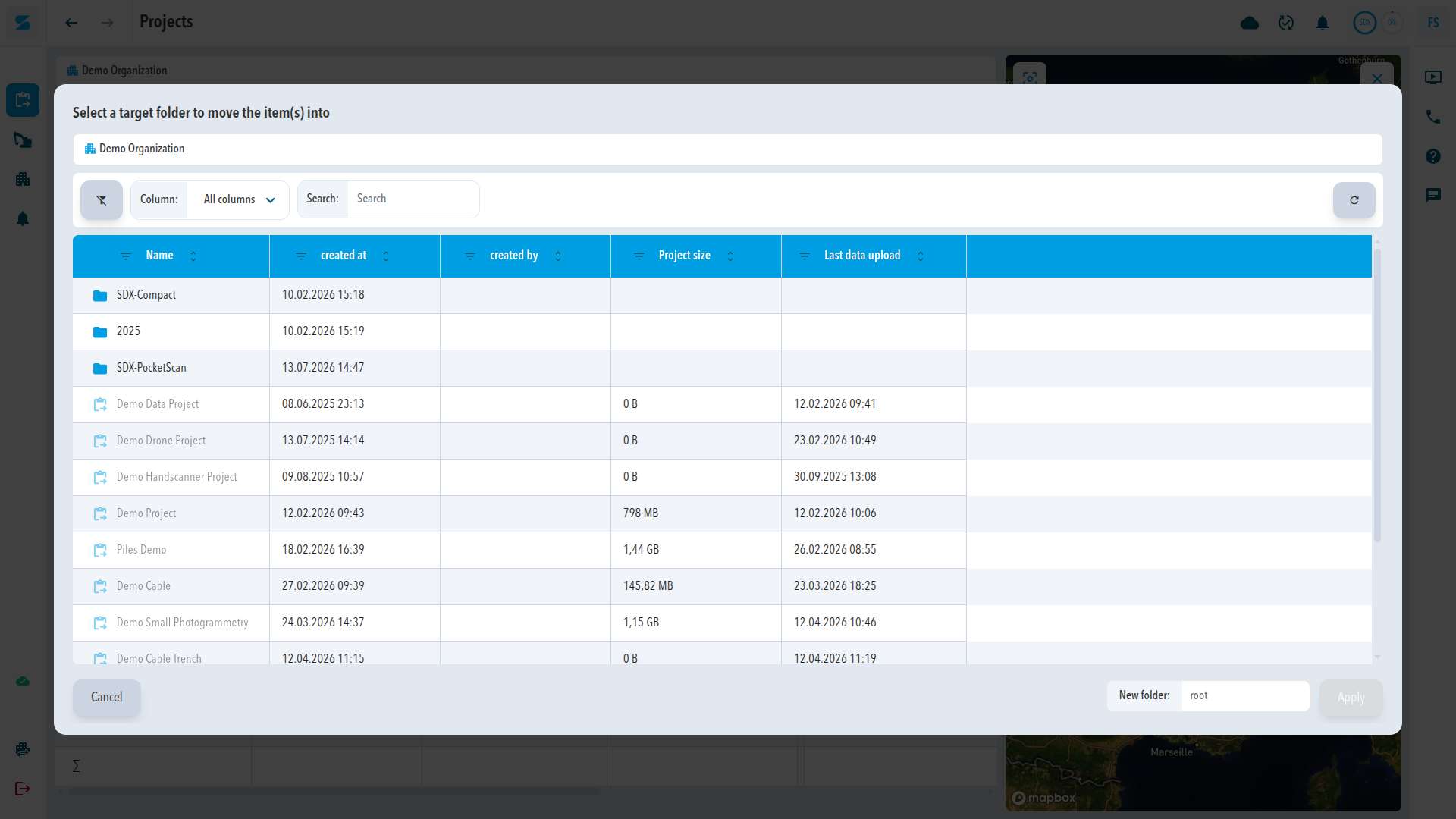
- In the dialog Select a target folder to move the item(s) into, click the folder. Projects in the list are greyed out and cannot be chosen.
- To create the folder at the same time, type its name in New folder.
- Click Apply.
Expected result
The project is no longer listed at the top level of the Projects list. Open the folder to see it there. The project name, data, and users do not change.
A folder has its own three-dot menu with Move folder, Edit, and Delete folder.
What about moving data models?
A data model cannot be moved or copied to another folder, project, or organization. Its row menu on the Data tab offers View in infomap, Open processed files, Edit, and Delete only. If the same data is needed in another project, upload the source files to that project.
Comments
0 comments
Please sign in to leave a comment.