TL;DR: The System logs screen has a new look. It works exactly as before. Organization admins and system admins can open it.
Who can open it
Organization admins and system admins.
Where to find it
- Select the systems button in the left navigation. The list of your organization's systems opens.
- Select a system.
- Select the System logs tab. It is the first tab, before Machine profiles, Quick tasks, and Settings.
Before the first entry
A system without log entries shows No logs yet. The time range starts at All time, and the Type filter has no options until there are entries.
What the screen shows
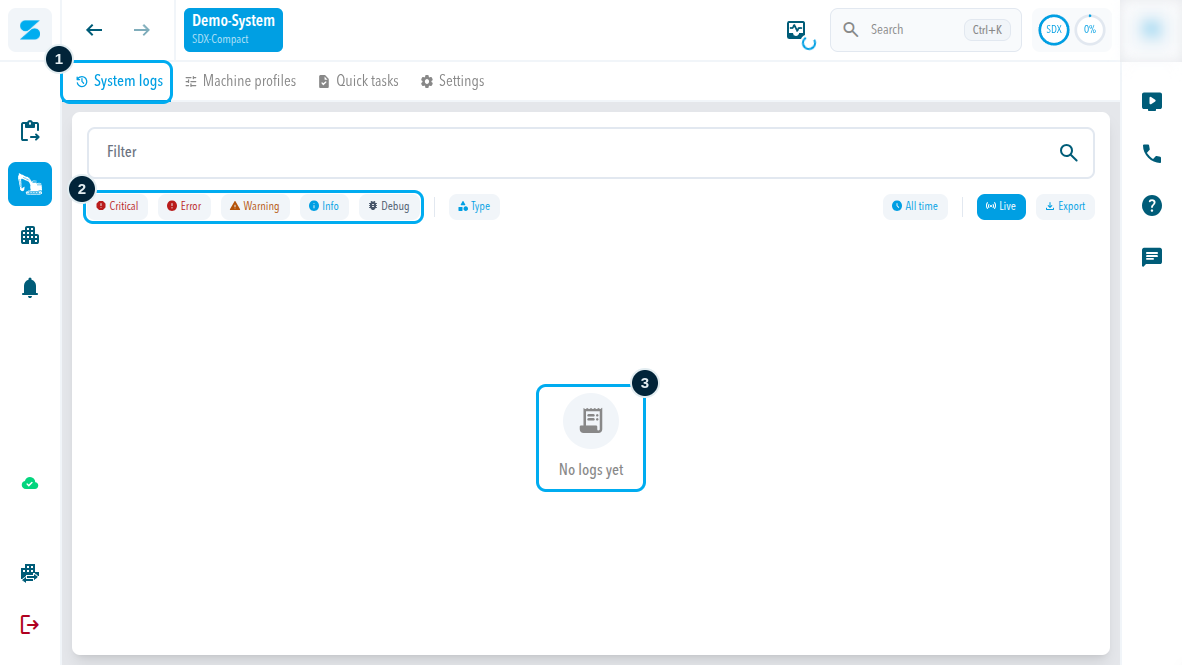
| Element | What it does |
|---|---|
| Filter and search field | Narrows the list of entries |
| Severity filters | Critical, Error, Warning, Info, and Debug |
| Type filter | Narrows the list by entry type |
| Time range, Live, Export | Choose the period, follow new entries, export the log |
| Log table | Columns Time, Severity, Type, and Message |
| Details panel | For the selected entry: first seen, last seen, how often it occurred, severity, and details specific to the entry |
What did not change
This is a visual overhaul. The functions are the same as before.
Comments
0 comments
Please sign in to leave a comment.