Use Organization > Settings > Devices in SDX-Cloud to add, edit, deactivate, or remove supported devices. Enter each serial number exactly as shown on the device, because the serial number cannot be changed later and incorrect SDX-PocketScan serials prevent uploads.
Summary
You can manage SDX-PocketScan devices, drones, and DJI Docks from the Devices area in your organization settings. This article explains the shared device-creation workflow, the required fields for each device type, and the limits you should verify before you save.
If you need background on Active, Create pins, licenses, or flatrates, read Article: Device Management Overview in SDX-Cloud first.
Prerequisites
- You have access to the correct organization in SDX-Cloud.
- You know which device type you want to add: SDX-PocketScan, Drone, or DJI Dock.
- You have the device serial number available exactly as printed on the hardware.
- You have decided whether the device should be Active, create pins automatically, or receive a license or flatrate.
- If you are adding a DJI Dock, you already have an active drone available for assignment or you are ready to create one first.
Step-by-step instructions
General steps to add a device
The basic creation flow is the same for all supported device types.
- Open Organization > Settings > Devices.
- Select the tab for the device type you want to add.
- Click the + button in the top-right corner of the table.
- Enter a clear name in Name.
- Enter the exact device serial number in Serial number.
- Enter a description if you want to store an additional note for the device.
- Select the relevant options, such as Active, Create pins, Has license, or Has flatrate.
- Click Continue or Save.
Expected result: The device is saved and appears in the selected device table.
Name and Serial number are mandatory. After you save the device, the serial number cannot be changed. After you assign a license or photogrammetry flatrate, that assignment is permanent and the device can no longer be deleted.
Adding an SDX-PocketScan device
SDX-PocketScan devices use a split serial-number format that must match the hardware label exactly.
For the full dedicated workflow, see Article: SDX-Cloud: How to add a SDX-PocketScan Device.
- Open the SDX-PocketScan tab.
- Click the + button.
- Enter the device name in Name.
- Enter the serial number in the matching serial fields.
- Enter the first serial part with 5 characters using lowercase letters and numbers.
- Enter the second serial part with 8 characters using uppercase letters and numbers.
- Enable Is extended serial number only if the device has a third serial part after the final hyphen.
- Enter the third serial part with 2 characters if the extended serial option is enabled.
- Enter a description if needed.
- Enable or disable Active depending on whether uploads should be processed automatically.
- Enable or disable Create pins depending on whether Infomap pins should be created automatically.
- Assign Has license or Has flatrate only if the device should permanently receive that entitlement.
- Click Continue.
Expected result: The SDX-PocketScan device is available in the table and can be used with the saved configuration.
If an SDX-PocketScan uploads data but its serial number is missing in SDX-Cloud or saved in the wrong format, the upload fails.
An SDX-PocketScan device can have both a Sodex Mobile mapping license and a flatrate. Assign either option only when you are sure, because both assignments are irreversible and also prevent future deletion of that device.
Adding a drone
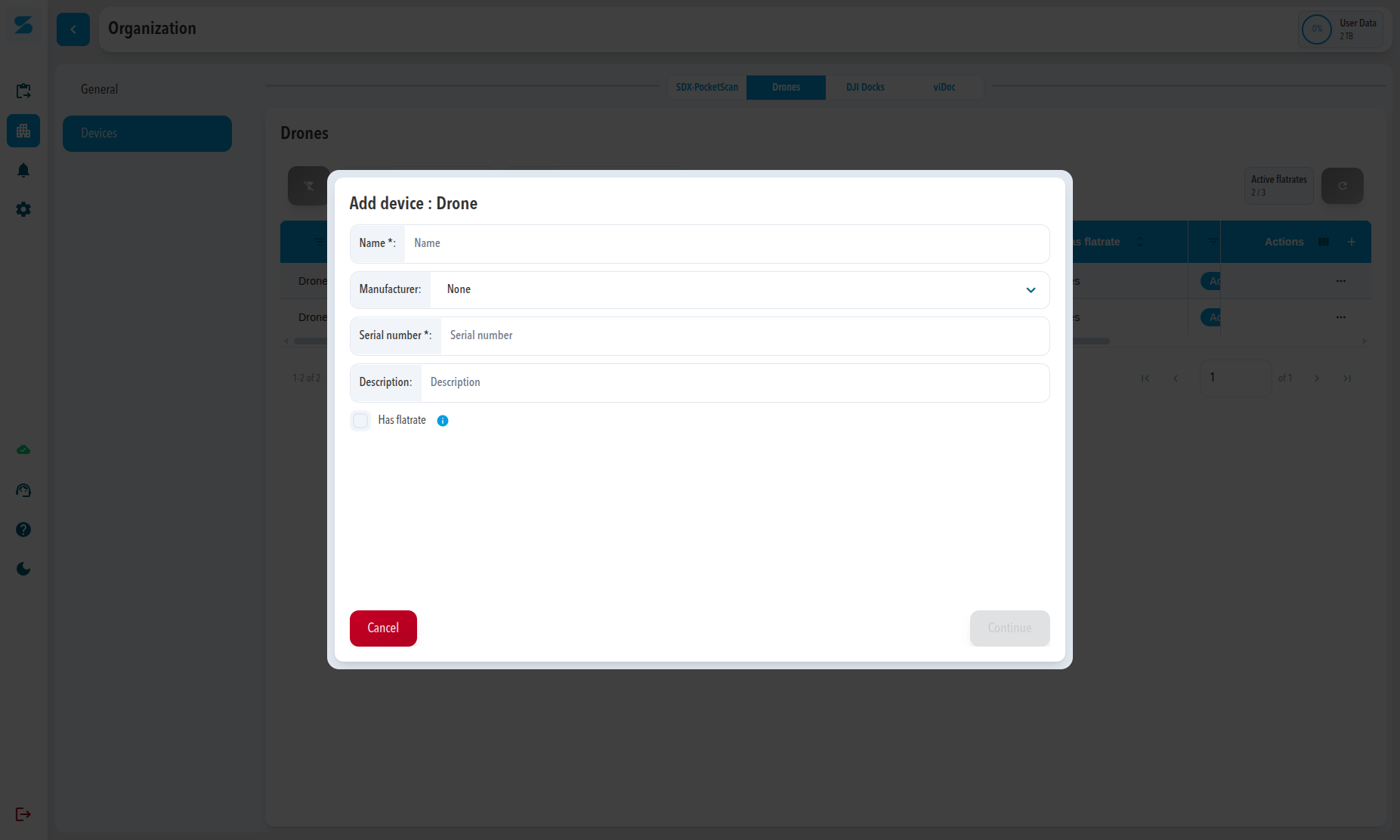
Drone devices require the standard device fields plus a manufacturer selection.
- Open the Drones tab.
- Click the + button.
- Enter the device name in Name.
- Select the manufacturer in Manufacturer.
- Enter the drone serial number.
- Enter a description if needed.
- Enable Active if flights from this drone should be processed automatically.
- Enable Has flatrate only if the drone is covered by a photogrammetry flatrate.
- Click Continue.
Expected result: The drone is saved and can be selected later for DJI Dock assignment or drone-based workflows.
If you do not assign a flatrate, the drone can still use credit-based Sodex photogrammetry processing while credits are available.
Adding a DJI Dock
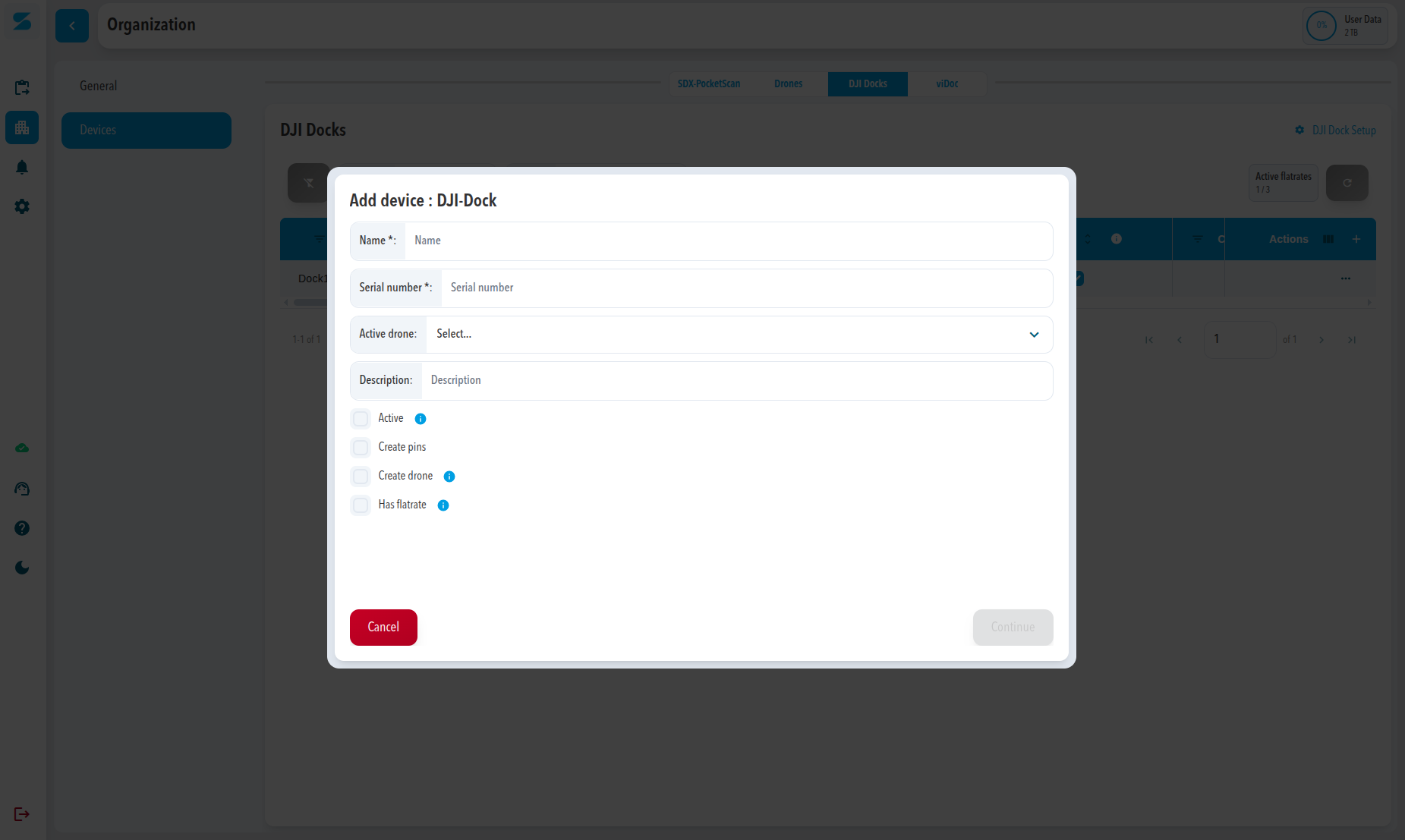
A DJI Dock must be linked to an active drone before you can finish the setup.
Create the required drone first if it does not already exist, because the Active drone field is required for DJI Dock setup.
- Open the Drones tab.
- Create the required drone first if it does not already exist.
- Open the DJI Docks tab.
- Click the + button.
- Enter the device name in Name.
- Enter the dock serial number.
- Select the linked drone in Active drone.
- Enter a description if needed.
- Enable Active if flights from this dock should be processed automatically.
- Enable Create pins if captures from this dock should create Infomap pins automatically.
- Enable Has flatrate only if the dock is covered by a photogrammetry flatrate.
- Click Continue.
Expected result: The DJI Dock is saved with an active drone assignment and is ready for dock-based workflows.
You can change the linked drone later, and you can also add a drone to an existing DJI Dock afterwards.
Changing or adding a drone to a DJI Dock
You can update the active drone assignment for a DJI Dock at any time.
- Open Organization > Settings > Devices.
- Select the DJI Docks tab.
- Click the three-dot menu in the Actions column.
- Select Edit.
- Select the correct device in Active drone.
- Click Save.
Expected result: Future flights from that DJI Dock are linked to the newly selected drone.
Limits and notes
- The serial number is locked after the device is saved.
- Licenses and photogrammetry flatrates are permanent after assignment.
- A device that has a license or flatrate assigned can no longer be deleted.
- SDX-PocketScan uploads fail if the saved serial number does not exactly match the registered hardware serial.
- A DJI Dock always requires an active drone assignment.
Comments
0 comments
Please sign in to leave a comment.